WEB LAB · BACKEND ARCHITECTURE
High-Throughput PDF Generation in Node.js: Self-Hosted Puppeteer vs Browserless
A production-focused comparison of Dockerized Chromium workers, Browserless, and Cloudflare Browser Run for generating reliable PDFs at scale.
Generating a PDF from HTML looks straightforward in a local development environment. Load a page with Puppeteer, call page.pdf(), and return the resulting file. Production systems are less forgiving. Chromium consumes significant memory, browser startup adds latency, fonts and images may load unpredictably, and a burst of invoice or report requests can overwhelm a server that was never designed to run dozens of browser processes simultaneously.
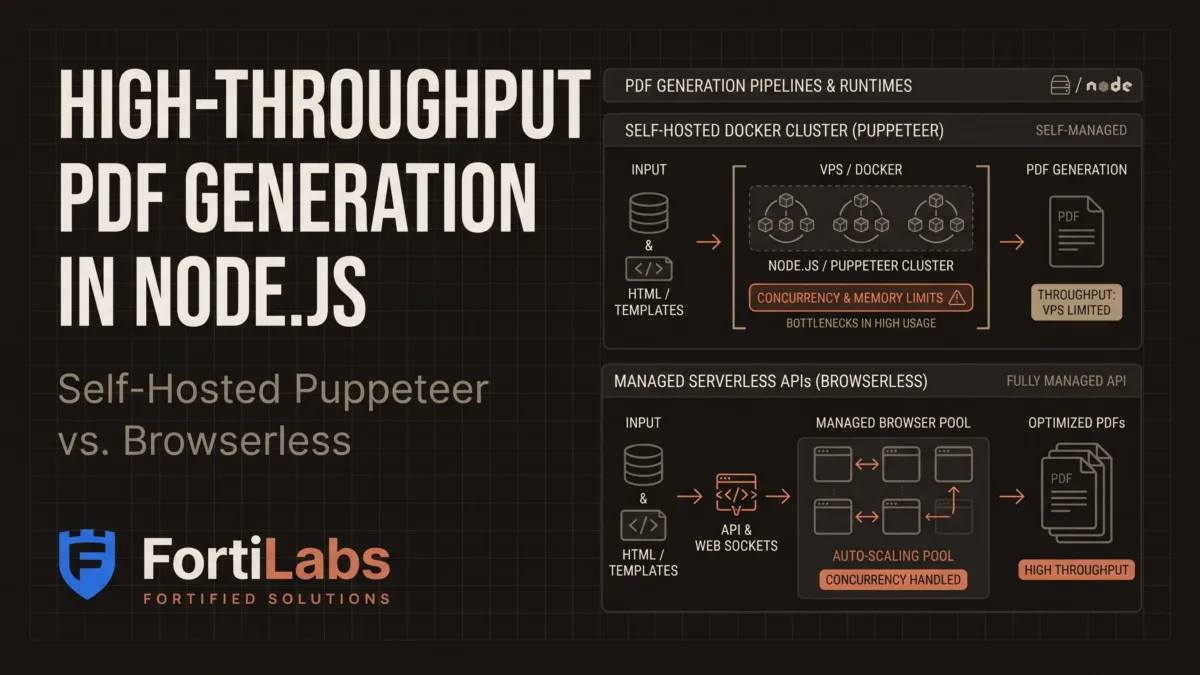
The architectural decision is usually between operating your own browser-rendering infrastructure and outsourcing browser execution to a managed service. A self-hosted Puppeteer or Playwright cluster gives you control over browser versions, networking, capacity, and infrastructure costs. Browserless and Cloudflare Browser Run reduce the operational burden, but introduce usage meters, concurrency limits, provider-specific constraints, and another external dependency.
Short answer: self-hosted browser workers are attractive when rendering volume is predictable, workloads are sustained, and your team can operate Chromium reliably. Managed browser APIs are usually easier to launch, scale, and maintain for variable workloads. A hybrid architecture can be the most practical option when you need a predictable baseline with burst capacity.
1. How production PDF generation works
A reliable PDF pipeline separates the request that asks for a document from the browser process that renders it. Treating PDF generation as an ordinary synchronous web request creates unnecessary coupling between user-facing application traffic and a resource-intensive workload.
Recommended architecture: accept and validate the document request, enqueue a rendering job, let a bounded worker pool generate the PDF, store the result, and notify the application when the file is ready.
- Request: an authenticated user requests an invoice, report, statement, or certificate.
- Data preparation: the application validates permissions, retrieves the required data, and creates a stable document payload or rendering URL.
- Queue: a job is added to a durable queue with a unique identifier, retry policy, and idempotency key.
- Rendering: a worker obtains a browser slot, creates an isolated page or browser context, waits for the required content, and generates the PDF.
- Storage: the worker stores the PDF in object storage or another durable file store.
- Completion: the application records the result and exposes a download link or sends a notification.
This design prevents a slow browser operation from tying up an application server’s request thread or exhausting its connection pool. It also makes it possible to control throughput independently from ordinary API traffic.
Do not make every PDF request launch a new browser
Launching a fresh Chromium process for every document is simple, but startup overhead and memory consumption can become expensive under load. A worker can keep a browser process alive and create a fresh browser context for each job. Contexts isolate cookies and local storage, and closing a context closes its associated pages. Recycle the browser process periodically or when health checks detect abnormal behavior.
For multi-tenant applications, do not share a page or authenticated browser context between unrelated customers. A browser process may be reused, but document state, cookies, storage, and permissions should be isolated per job.
2. Why serverless Chromium fails in production
Serverless functions are convenient for short-lived application logic. Browser rendering is a heavier workload: Chromium includes native binaries and shared libraries, launches multiple processes, uses substantial memory, and may need to download fonts, images, and scripts before a page can be printed.
Chromium package size and deployment limits
Bundling Chromium into a function can push deployment packages beyond the platform’s size limits. AWS Lambda, for example, documents a 250 MB unzipped limit for deployment packages and layers, while container images have a separate maximum size. A Lambda container image can be up to 10 GB uncompressed, but a larger deployment does not make browser startup or memory consumption free.
Common approaches include using a compatible, platform-specific Chromium build, deploying a container image, or moving browser execution to a remote browser service. The browser binary and its native dependencies must match the function’s operating system and architecture. A package that works on a developer’s laptop may fail on the serverless runtime.
Cold starts and browser startup
A cold invocation may need to initialize the function, load the browser package, create temporary files, launch Chromium, and then navigate to the document. These steps add latency before the actual rendering work begins.
Keeping a function warm can reduce some initialization overhead, but it is not a reliable substitute for a properly designed browser worker pool. Serverless environments can be recycled, scaled down, or started concurrently. If predictable rendering latency matters, measure cold and warm paths separately.
Memory pressure and leaked browser resources
Chromium is a multi-process application. A single browser can create renderer, utility, and other processes, and complex pages may use substantially more memory than simple templates. If code fails to close pages or browser contexts, resources accumulate. A long-lived worker can gradually become unstable even if each individual PDF succeeds.
Use try/finally to guarantee cleanup. Monitor process memory, browser restarts, open pages, job duration, and out-of-memory terminations. Do not assume that closing a Node.js page reference automatically cleans up every browser resource.
Function timeouts and execution limits
Rendering can exceed a function’s execution timeout when the target page has slow assets, third-party scripts, unbounded network activity, or a complex layout. AWS Lambda currently documents a maximum standard function timeout of 15 minutes, but other serverless products and browser services impose their own limits. A larger timeout is not a queueing strategy: it can leave scarce execution capacity occupied by a stuck job.
Set separate limits for navigation, waiting for document readiness, and PDF generation. Define an overall job deadline as well. When the deadline expires, cancel the operation, close the context, record the failure reason, and apply a controlled retry policy.
When serverless still makes sense
Serverless rendering can work well for low-volume documents, short and predictable templates, and workloads where the platform supports a compatible browser container. It becomes less attractive when you need sustained throughput, strict latency targets, long-running pages, or fine-grained control over browser process reuse.
3. Self-hosted Puppeteer or Playwright on Docker and VPS infrastructure
A self-managed browser cluster typically runs Node.js workers and Chromium inside Docker containers on one or more VPS instances or cloud virtual machines. The application sends jobs through a queue; workers pull jobs, render documents, and return storage references.
Typical deployment components
- API service: authenticates requests, validates document parameters, and creates jobs.
- Durable queue: Redis-backed queues, RabbitMQ, or a managed message broker.
- Browser workers: Dockerized Node.js processes with a pinned Puppeteer or Playwright version and matching browser binaries.
- Object storage: S3-compatible storage for completed PDFs and temporary assets.
- Observability: metrics, structured logs, traces, alerts, and job-level error reporting.
Pin the Node.js runtime, browser version, automation library, and container image. Browser upgrades can change font rendering, layout behavior, or PDF output. Treat a browser upgrade like a production dependency change: test representative documents before deploying it.
Example: safe Puppeteer document rendering
The following example reuses an existing browser process, creates an isolated context for each document, waits for a specific application readiness marker, and closes the context even when rendering fails. The caller is responsible for controlling the number of simultaneous jobs.
async function renderPdf(browser, documentUrl) {
  const context = await browser.createBrowserContext();

  try {
    const page = await context.newPage();

    page.setDefaultNavigationTimeout(30_000);
    page.setDefaultTimeout(15_000);

    await page.goto(documentUrl, {
      waitUntil: 'domcontentloaded',
      timeout: 30_000
    });

    // Your document template should set this marker only
    // after its data, images, and required assets are ready.
    await page.waitForSelector('[data-pdf-ready="true"]', {
      timeout: 15_000
    });

    await page.evaluate(async () => {
      await document.fonts.ready;
    });

    return await page.pdf({
      format: 'A4',
      printBackground: true,
      preferCSSPageSize: true,
      waitForFonts: true,
      timeout: 30_000,
      margin: {
        top: '12mm',
        right: '12mm',
        bottom: '12mm',
        left: '12mm'
      }
    });
  } finally {
    await context.close();
  }
}
The readiness marker is deliberate. networkidle is not a universal signal that an application is ready to print. Analytics, polling, WebSockets, and other persistent connections can prevent network-idle conditions from occurring. A template-controlled readiness marker is often more deterministic than waiting for every network connection to disappear.
For a long-lived worker, also implement browser health checks and process recycling. If the browser disconnects or becomes unhealthy, discard that process and launch a replacement rather than repeatedly sending jobs to a broken instance.
Docker operational details
Chromium needs sufficient shared memory and correct process management. Playwright’s Docker guidance recommends using --init to handle process lifecycle and recommends --ipc=host for Chromium to reduce shared-memory-related crashes. Review the security implications of the container configuration, especially when processing untrusted pages.
Do not solve browser crashes by indiscriminately disabling Chromium’s sandbox. Run as a non-root user where practical, apply a restrictive container profile, limit filesystem access, and prevent the browser from reaching internal services or cloud metadata endpoints.
Advantages and trade-offs
- Advantages: control over browser versions, worker sizing, network access, concurrency, storage, and deployment topology; predictable infrastructure capacity for sustained workloads.
- Trade-offs: you own browser patching, process supervision, autoscaling, queue operations, capacity planning, monitoring, and incident response.
4. Managed browser APIs: Browserless vs Cloudflare Browser Run
Managed browser services move Chromium execution outside your application infrastructure. Your Node.js service sends a request to a browser endpoint or connects to a remote browser session. The provider manages the browser fleet, while your application still owns document data, authorization, retries, storage, and business logic.
Browserless
Browserless provides hosted browser sessions and APIs compatible with Puppeteer and Playwright, alongside REST endpoints for common browser tasks such as PDF generation. It can be useful when you want to preserve an existing Puppeteer workflow while moving browser execution to managed infrastructure.
Its published cloud pricing uses browser-time units. One unit represents up to 30 seconds of browser session time, and partial intervals round up. A session lasting 31 seconds therefore consumes two units. The same time-based model applies to its PDF endpoint and browser-as-a-service connections, subject to the plan’s concurrency and session-duration limits.
Browserless also offers an open-source Docker image for self-hosting core browser functionality. This is a useful middle ground when you want its browser-service interface but prefer to operate the infrastructure yourself. Some advanced hosted and enterprise features are not part of the open-source image.
Cloudflare Browser Run
Cloudflare Browser Run offers two relevant integration models:
- Quick Actions: stateless HTTP endpoints for tasks such as generating a PDF from a URL or supplied HTML.
- Browser Sessions: direct browser control through Puppeteer, Playwright, CDP, or other supported integrations.
For a straightforward invoice or certificate, the PDF Quick Action can avoid maintaining a browser connection in your application. For multi-step workflows that require custom interaction, authenticated navigation, or several pages, a browser session provides more control.
Cloudflare’s published Browser Run pricing meters browser hours. On Workers Paid, the published allowance includes 10 browser hours per month, with additional browser hours priced at $0.09 per hour. Browser Sessions also have a concurrent-browser allowance and additional concurrency charges. Quick Actions and Browser Sessions have different rate and limit rules, so compare the exact integration you plan to use.
Feature comparison
| Area | Self-hosted Docker | Browserless | Cloudflare Browser Run |
|---|---|---|---|
| Browser operations | Your responsibility | Provider-managed cloud fleet | Provider-managed browser infrastructure |
| Integration | Local Puppeteer or Playwright | Remote Puppeteer/Playwright and REST APIs | Quick Actions, Puppeteer, Playwright, or CDP |
| Billing model | Compute, storage, bandwidth, and operations | Browser-time units and plan limits | Browser hours; session concurrency also matters |
| Scaling | You provision and scale workers | Managed within plan limits | Managed within account limits |
| Browser version control | High control; you manage upgrades | Provider-managed versions | Provider-managed versions |
| Best fit | Predictable, sustained workloads and custom control | Existing Puppeteer workflows and managed browser sessions | Simple PDF Quick Actions or Cloudflare-centered applications |
Managed does not mean unlimited. Check the current plan’s maximum session duration, concurrent browsers, request rate, timeout behavior, and overage policy before designing around a provider.
5. Concurrency, queues, and timeouts
High throughput is not achieved by launching as many browser processes as possible. Excessive concurrency can cause memory pressure, CPU contention, slow navigation, and cascading timeouts. The goal is to keep a controlled number of jobs running while preserving enough capacity to absorb bursts.
Use a bounded worker pool
Set a maximum number of active render jobs per worker based on measured memory and CPU usage. Start conservatively, benchmark realistic templates, and increase concurrency only while latency and error rates remain stable. A browser process may support multiple isolated contexts, but each active page consumes resources. Do not equate one browser process with unlimited rendering capacity.
Use a durable queue to absorb spikes. Apply backpressure when the queue grows beyond a defined threshold, and expose job states such as queued, processing, completed, and failed. For user-facing workflows, return a job ID and let the client poll or receive a notification rather than holding an HTTP request open for the entire render.
Separate timeout budgets
- Queue wait: maximum time a job may wait before being escalated or expired.
- Navigation: time allowed for the document route to load.
- Readiness: time allowed for the application to signal that data and assets are ready.
- PDF action: time allowed for Chromium to produce the output.
- Overall deadline: maximum total time for the job, including retries where applicable.
Use different values for different document classes. A one-page invoice should not inherit the same timeout as a 100-page analytics report. Timeouts should be based on observed percentiles and an explicit service-level objective, not arbitrary large values.
Retries must be idempotent
Browser failures are not always deterministic. A font server may temporarily fail, an external image may time out, or a worker may be terminated. Retry only errors that are likely to be transient. Do not repeatedly retry invalid document data, missing permissions, broken templates, or permanent navigation failures.
Use an idempotency key based on the document identity and version. Store completed output before marking the job successful. If a worker crashes after generating a PDF but before acknowledging the queue message, the next worker should detect an existing valid output rather than create duplicate business records or send duplicate notifications.
Measure the right metrics
- Queue depth and queue-wait time
- PDF render duration at p50, p95, and p99
- Browser launch and navigation duration
- Memory and CPU per worker and per browser process
- Active contexts, pages, and browser restarts
- Timeouts, retries, crashes, and failed jobs by reason
- Cost per successful document, not merely cost per attempted render
These metrics help distinguish a slow template from an overloaded worker pool or a provider concurrency limit.
6. Print CSS: the hidden cause of inaccurate PDFs
A browser PDF is a printed rendering of a web page, not simply a screenshot saved as a document. Puppeteer’s page.pdf() uses the print CSS media type by default. That means a page that looks correct on screen can produce a different result when printed.
Common layout failures
- Wrong page dimensions: the template uses screen dimensions rather than a defined paper size.
- Unexpected margins: browser PDF margins and CSS
@pagerules conflict. - Missing backgrounds: print color adjustments omit background colors or graphics unless configured.
- Font substitution: a web font has not loaded, is blocked, or is unavailable in the browser container.
- Broken pagination: tables, signatures, headings, or cards split across pages in undesirable places.
- Screen-only styles: navigation, buttons, sticky headers, and interactive controls appear in the document or hide required content.
- External assets: images or stylesheets load slowly, return an authorization error, or are unavailable from the rendering environment.
Define print-specific rules
Keep print layout rules in the document template instead of relying on the browser’s default settings. Define page size, margins, page breaks, and color behavior explicitly.
@page {
  size: A4;
  margin: 12mm;
}

@media print {
  * {
    -webkit-print-color-adjust: exact;
    print-color-adjust: exact;
  }

  .no-print {
    display: none !important;
  }

  .report-section,
  .invoice-summary {
    break-inside: avoid;
  }

  h1,
  h2,
  h3 {
    break-after: avoid;
  }

  thead {
    display: table-header-group;
  }

  tfoot {
    display: table-footer-group;
  }

  img,
  svg {
    max-width: 100%;
  }
}
These rules are a starting point, not a guarantee that every browser will paginate every component identically. Test long tables, oversized images, multi-page sections, and documents with different amounts of content.
Wait for the right readiness conditions
Before printing, wait for the application to finish rendering its data, required images to load, and fonts to become available. Puppeteer documents that PDF generation waits for fonts by default, but an explicit application readiness signal remains valuable for dynamic pages. Avoid arbitrary fixed sleeps as the primary readiness mechanism.
For consistent output, host critical fonts and assets in a reliable location accessible to the browser worker. Avoid depending on third-party resources that can change, rate-limit requests, or become unavailable.
Visual regression testing
Maintain a small suite of representative documents: a short invoice, a multi-page report, a certificate with a background image, a long table, and a document containing non-Latin characters. Generate PDFs after browser or template changes and compare page count, extracted text, dimensions, and rendered page images.
Pixel comparisons need tolerances because font rasterization and browser updates can produce small differences. The objective is to catch meaningful layout regressions, not to demand byte-for-byte identical PDF files.
7. Cost per 1,000 PDF renders: a realistic comparison
There is no universally correct cost-per-thousand number. A 2-second certificate, a 15-second invoice, and a 90-second report do not consume the same browser resources. The useful comparison is to model a known render duration, include the provider’s billing increments, and then add the infrastructure or plan costs that apply to your workload.
Browserless: 30-second billing units
Browserless documents one unit per 30 seconds of browser session time, with partial intervals rounded up. Its published Prototyping plan lists 20,000 monthly units and $0.0020 per additional unit; Starter lists 180,000 units and $0.0017 per additional unit; Scale lists 500,000 units and $0.0015 per additional unit. Published plan prices and included units can change, so confirm the current pricing page before purchasing.
| Average session duration | Units per render | Units per 1,000 renders | Prototyping overage | Starter overage | Scale overage |
|---|---|---|---|---|---|
| 10 seconds | 1 | 1,000 | $2.00 | $1.70 | $1.50 |
| 30 seconds | 1 | 1,000 | $2.00 | $1.70 | $1.50 |
| 31 seconds | 2 | 2,000 | $4.00 | $3.40 | $3.00 |
| 60 seconds | 2 | 2,000 | $4.00 | $3.40 | $3.00 |
Important: these are illustrative overage calculations, not the full monthly bill. They exclude the plan subscription and assume the monthly included units have already been consumed. If your workload fits inside the included allowance, the effective cost depends on how much of that allowance you actually use. Concurrency limits and maximum session duration can also determine which plan is viable.
Cloudflare Browser Run: browser-hour pricing
Cloudflare’s published Workers Paid Browser Run pricing includes 10 browser hours per month, with additional browser hours priced at $0.09 per hour. Quick Actions are charged for browser hours. Browser Sessions also involve concurrent-browser pricing and limits.
For an illustrative 1,000 Quick Action PDF renders, assuming each render consumes 10 seconds of browser time:
- 1,000 × 10 seconds = 10,000 seconds
- 10,000 ÷ 3,600 = approximately 2.78 browser hours
- At $0.09 per additional hour, that is approximately $0.25 in marginal browser-hour charges if the included monthly allowance has already been exhausted.
If the 10 included monthly browser hours are still available, the incremental Browser Run browser-hour charge for this example is zero. This does not mean the overall application is free: the Workers plan, storage, data transfer, other Cloudflare services, and any applicable concurrency charges must be considered. A 30-second average would consume about 8.33 browser hours per 1,000 renders.
Self-hosted: calculate total cost of ownership
A VPS invoice is not the full cost of a self-managed PDF system. Include:
- VPS or cloud compute for Node.js and Chromium
- CPU and RAM headroom for peak concurrency
- Queue and monitoring infrastructure
- Object storage and PDF retention
- Network transfer and backup costs
- Redundancy, failover, and deployment capacity
- Engineering time for browser updates, incidents, and security maintenance
Use this calculation:
Cost per 1,000 successful PDFs = (monthly infrastructure + storage + network + operations cost) ÷ successful monthly PDFs × 1,000.
For example, if the complete monthly system costs $300 and successfully generates 100,000 PDFs, the infrastructure-and-operations cost is $3 per 1,000 PDFs. If the same system only generates 10,000 PDFs, the cost becomes $30 per 1,000. These are hypothetical calculations to demonstrate utilization sensitivity, not VPS market-price estimates.
What the comparison actually tells you
Managed browser services can be extremely cost-effective when they replace idle capacity and operational work. Self-hosting can become attractive when workers stay busy and rendering volume is predictable. But the cheapest browser-time rate is not automatically the cheapest production system. Include failed jobs, retries, concurrency requirements, output storage, engineering time, and the cost of missed document deadlines.
8. Security and reliability safeguards
PDF generation often processes invoices, statements, employee records, customer information, or financial reports. A rendering browser should be treated as a privileged component, not as a harmless image-conversion utility.
- Authorize before rendering: verify that the requesting user can access every record included in the document.
- Use short-lived document access: avoid embedding permanent credentials or unrestricted internal URLs in browser requests.
- Restrict network access: prevent user-controlled URLs from reaching localhost, private IP ranges, internal admin services, or cloud metadata endpoints.
- Control template inputs: escape untrusted content and avoid allowing users to inject arbitrary HTML or scripts into privileged templates.
- Isolate tenants: use a separate context per job and do not reuse customer cookies or storage.
- Protect output files: use private storage, authorization checks, short-lived download links, and a defined retention policy.
- Keep secrets out of browser pages: do not expose API keys, service credentials, or internal tokens to client-side JavaScript.
- Review provider data handling: check retention, processing region, logging, session recording, and contractual requirements before sending sensitive documents to a managed provider.
For untrusted HTML or user-supplied URLs, a dedicated isolated worker environment is safer than a browser process that shares broad network access with your production application.
9. Which PDF generation architecture should you choose?
Choose self-hosted Docker workers when:
- You generate a high and relatively predictable volume of documents.
- You need control over browser versions, fonts, networking, and runtime configuration.
- Your team can maintain containers, queues, monitoring, and browser upgrades.
- You can keep worker capacity well utilized instead of paying for mostly idle machines.
Choose Browserless when:
- You already have Puppeteer or Playwright code and want to move browser execution off your servers.
- You need managed browser concurrency without operating a Chromium fleet.
- You prefer a browser-session model or a ready-made PDF API.
- Your expected session durations and concurrency fit the selected plan.
Choose Cloudflare Browser Run when:
- You need straightforward PDF generation from a URL or supplied HTML through a Quick Action.
- Your application already uses Cloudflare Workers or its surrounding platform.
- You want browser-hour-based pricing and can work within the documented timeout and rate limits.
- You need direct Puppeteer, Playwright, or CDP control and can plan around session concurrency.
Consider a hybrid architecture
A hybrid design can keep a small self-hosted worker pool for predictable baseline traffic and route overflow jobs to a managed browser service. This reduces the need to provision for every traffic spike while preserving control over routine workloads.
However, hybrid rendering introduces operational complexity. Keep browser versions, fonts, templates, and print settings aligned across both environments. Run the same visual regression suite against each renderer before routing real customer documents to it.
Final verdict: do not choose based on the lowest advertised per-render price alone. Choose based on successful PDFs per hour, p95 latency, peak concurrency, failure rate, data sensitivity, and the engineering effort required to keep the system healthy. For a new application with variable demand, managed rendering is often the faster starting point. For sustained volume and an experienced infrastructure team, a measured self-hosted cluster may offer better long-term control and economics.
10. Frequently asked questions
Is Puppeteer suitable for high-volume PDF generation?
Yes. Puppeteer can generate PDFs at high volume when it runs behind a queue and a bounded worker pool. Production reliability depends on browser lifecycle management, context cleanup, memory limits, timeouts, and monitoring—not simply calling page.pdf() repeatedly.
Should I launch Chromium for every PDF?
Not necessarily. A long-lived worker can reuse a healthy browser process and create an isolated context for each job. Close each context after rendering and recycle the browser process periodically or when health checks indicate a problem.
Is Browserless cheaper than running Puppeteer on a VPS?
It depends on utilization and operational costs. Browserless bills browser time in 30-second units, while self-hosting requires you to pay for compute, storage, bandwidth, monitoring, redundancy, and maintenance. Compare total cost per successful PDF at your actual render duration and concurrency.
Can Cloudflare Browser Run generate PDFs without Puppeteer?
Yes. Its Quick Actions include a PDF endpoint that accepts a URL or HTML. Use a browser session with Puppeteer, Playwright, or CDP when you need more complex browser interaction or custom automation.
Why does a PDF look different from the web page?
PDF generation uses print rendering by default. Print styles, page dimensions, margins, font loading, background graphics, and page-break rules can all change the result. Define print CSS explicitly and test representative documents in the same browser version used in production.
How many PDFs can one Chromium worker generate concurrently?
There is no universal safe number. It depends on document complexity, browser memory, available CPU, page count, image processing, and the worker’s resource limits. Benchmark your own templates, then set a concurrency cap with memory and latency headroom.
What is the best way to prevent Chromium memory leaks?
Close each page or browser context in a finally block, track browser process memory, monitor open contexts and pages, and recycle unhealthy or long-running browser processes. Also investigate retained Node.js objects and unbounded caches in the worker itself.
Should I wait for networkidle before generating a PDF?
Only when that condition matches the page’s loading behavior. Persistent analytics, polling, or WebSocket connections can prevent network idle. A document-specific readiness marker, explicit font readiness, and checks for required images are often more reliable.
References and further reading
- Puppeteer: PDF generation — browser PDF behavior and font readiness.
- Puppeteer: Browser management — browser contexts and lifecycle management.
- Playwright: Docker — container configuration and Chromium process considerations.
- AWS Lambda quotas — deployment package, memory, timeout, and concurrency limits.
- Browserless: Unit consumption — browser-time billing details.
- Browserless pricing — current plan allowances and concurrency.
- Cloudflare Browser Run — Quick Actions and browser sessions.
- Cloudflare Browser Run pricing — browser-hour and concurrency pricing.
- Cloudflare Browser Run limits — browser concurrency, timeouts, and request limits.
- Cloudflare Browser Run timeouts — navigation and PDF action timeout settings.